Help / Fix
Fix
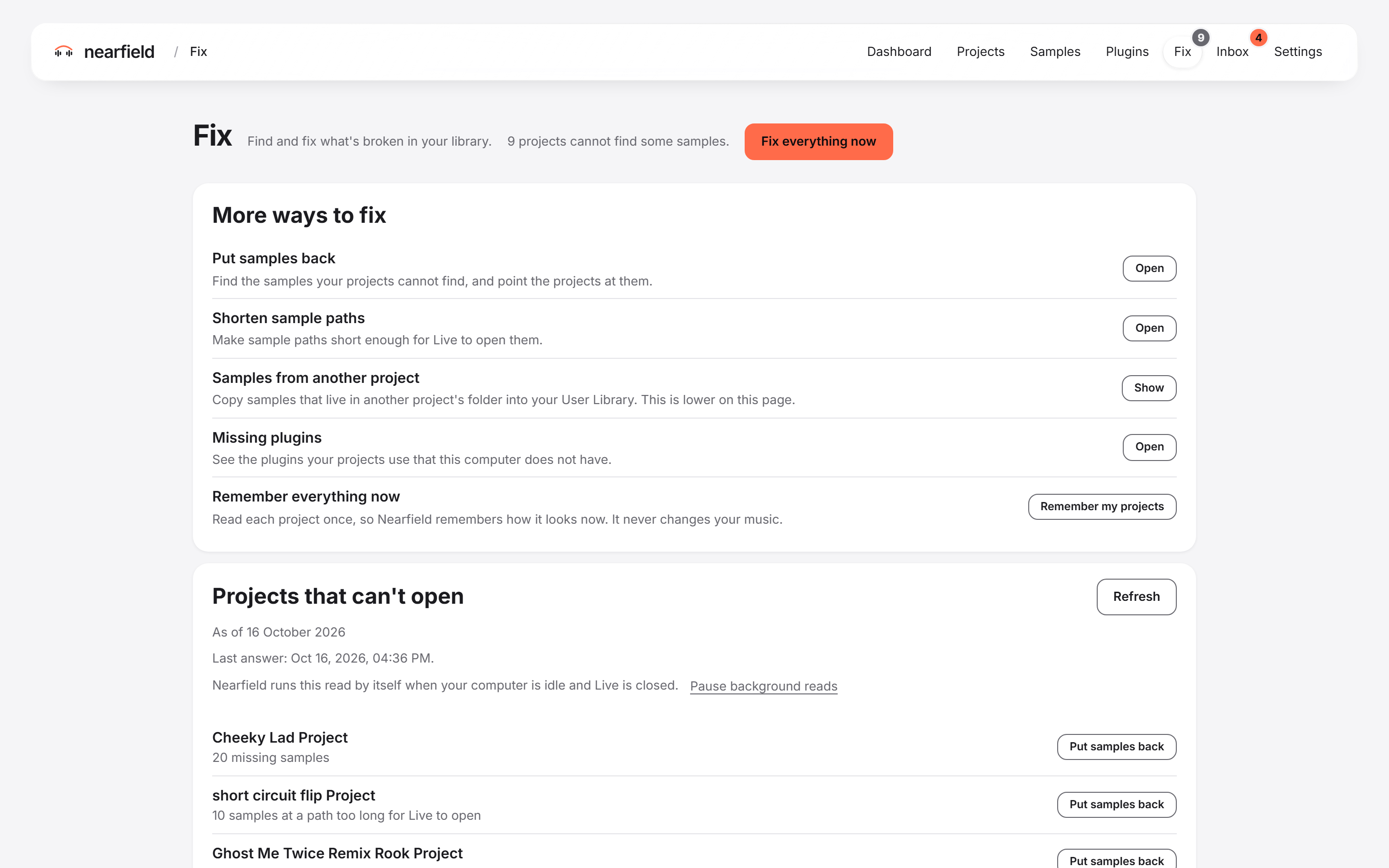
The Fix tab finds what is broken in your library and repairs it. A number on the tab shows how many projects cannot find some samples.
How every fix works
- A fix never changes your own Set.
- A fix saves a new copy beside your Set. The copy has [repaired] or [repointed] in its name.
- Open the copy in Live and check it. Keep the one you like.
The Fix tab
The top of the screen has one main button, “Fix everything now”. Under “More ways to fix” you find these tools, each with its own button:
- “Put samples back”. Press “Open” to go to it.
- “Shorten sample paths”. Press “Open” to go to it.
- “Samples from another project”. Press “Show” to go to it, lower on the page.
- “Missing plugins”. Press “Open” to go to it.
- “Remember everything now”. It reads each project once. Press “Remember my projects”. See Remember your projects.
The list “Projects that can't open” shows each project with missing samples, or with sample paths too long for Live to open. Most rows have a “Put samples back” button. A row whose repaired copy waits for you to check links to the project page instead. Press “Refresh” to read your library again.
Tasks
- Fix everything nowRepair what Nearfield can, in one run.
- Put missing samples backFind missing samples by fingerprint and repair the Set.
- Choose which file a name meansWhen two files have the name a project wants.
- Copy samples from another projectSamples that sit in another project's folder.
- Shorten sample pathsFix samples past the 260-character limit on Windows.