Skip to the content
nearfield
OverviewHelpSafetyPrivacyQuestions
Request access

Help / The Dashboard

The Dashboard

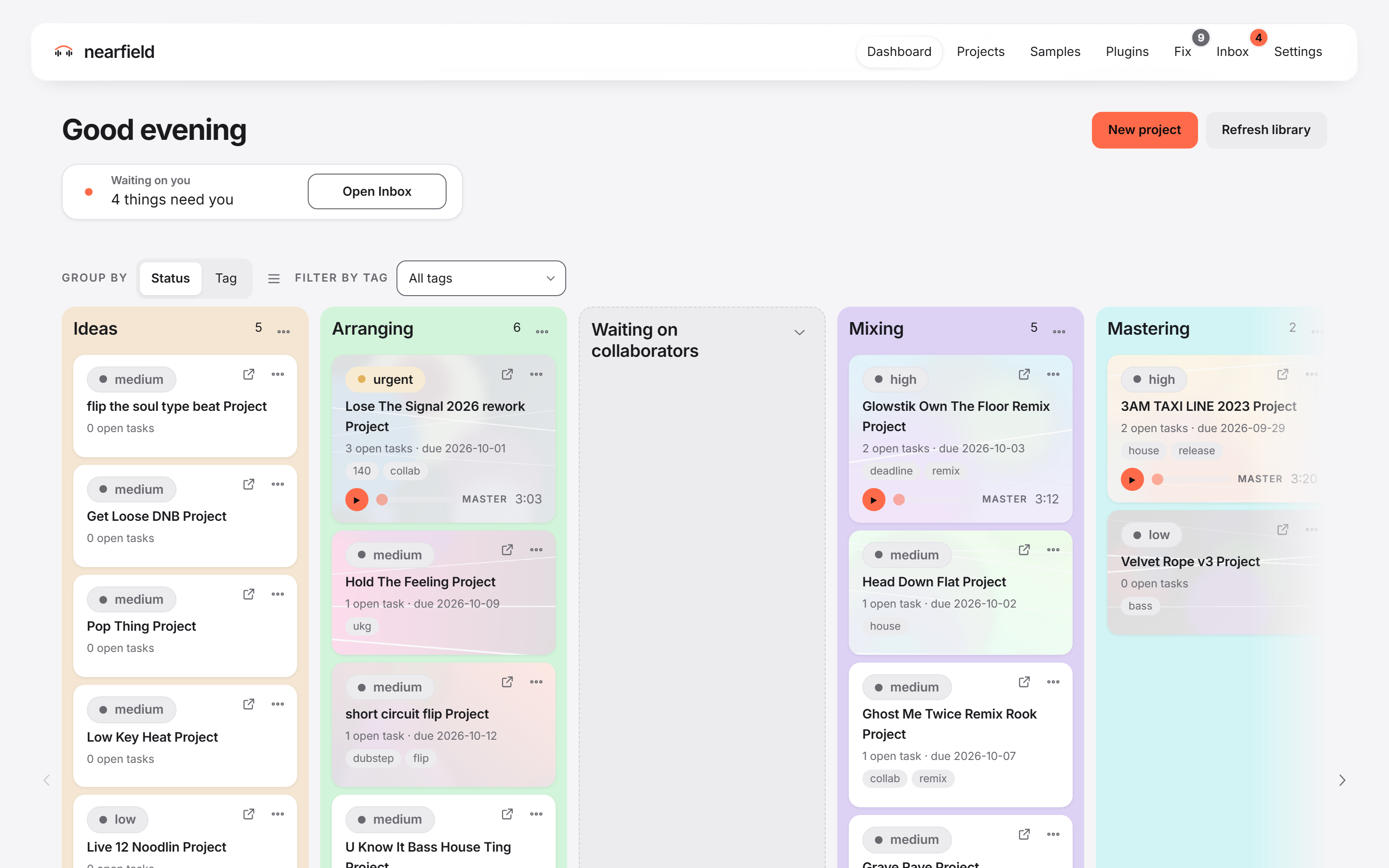
The Dashboard is the first tab. It shows the projects you are working on, as cards on a board.
DashboardDashboard

The top of the screen

The heading is a greeting, such as "Good evening". Two buttons sit beside it.

  • “New project” opens Ableton Live on a new unsaved Set.
  • “Refresh library” reads your library again to find new or changed projects. It runs in the background. If you open Live while it runs, it stops and waits.

A card at the top says what needs you. “Waiting on you” shows how many things wait in your Inbox. Press “Open Inbox” to see them. If sharing is paused, press “Resume”.

The lines at the bottom

The bottom of the Dashboard has quiet lines. Each shows only when it applies. One says "Something broken you haven't been told about?" and links to “Open Fix”. Others tell you about sync, about the projects you worked on this week, and about sample packs that look quiet.

Tasks

  • Sort projects on the boardColumns, sorting, tags and your own columns.
  • Use a project cardOpen a project in Live, open its page, or take a card off the board.
  • Place projects that are not on the boardThe projects that have no column yet.
nearfield

Your Ableton Live projects, organized and consistent on every computer and with every collaborator, Mac and Windows.

Help

  • All help pages
  • Get started
  • The Dashboard
  • Projects
  • Share and work together
  • Samples
  • Fix
  • Plugins
  • The Inbox
  • Backup and your computers
  • Moving to a new computer
  • Settings and your account
  • What Nearfield will never do

Trust

  • Safety
  • Privacy
  • Questions

Legal

  • Privacy (draft)
  • Terms (draft)

Nearfield is not made by or affiliated with Ableton. Ableton and Live are trademarks of Ableton AG.

This site sets no cookies and loads nothing from other companies.